---
title: "MCP Toolsets"
description: "import Tabs from '@theme/Tabs'; import TabItem from '@theme/TabItem';"
type: skill
canonical_url: https://claudary.paisolsolutions.com/skills/mcp-toolsets
source: "Claudary"
difficulty: intermediate
author: "Claude Code Knowledge Pack"
date: 2026-07-10T11:30:53.685Z
license: CC-BY-4.0
attribution: "MCP Toolsets — Claudary (https://claudary.paisolsolutions.com/skills/mcp-toolsets)"
---
# MCP Toolsets
import Tabs from '@theme/Tabs'; import TabItem from '@theme/TabItem';
## Overview
import Tabs from '@theme/Tabs';
import TabItem from '@theme/TabItem';
# MCP Toolsets
A **Toolset** is a named collection of specific tools drawn from one or more MCP servers. Instead of giving an agent access to every tool on every server, you pick exactly which tools it needs — from whichever servers they live on — and bundle them under a single name.
## How it works
```
┌─────────────────────────────────┐
│ MCP Toolset │
│ "devtooling-prod" │
└────────────┬────────────────────┘
│
┌──────────────────┴──────────────────┐
│ │
┌────────▼────────┐ ┌────────▼────────┐
│ CircleCI MCP │ │ DeepWiki MCP │
│ (10+ tools) │ │ (3 tools) │
└────────┬────────┘ └────────┬────────┘
│ │
┌─────────┴──────────┐ ┌──────────┴──────────┐
│ ✓ get_build_logs │ │ ✓ read_wiki_structure│
│ ✓ find_flaky_tests │ │ ✓ read_wiki_contents │
│ ✓ get_pipeline_ │ │ ✗ ask_question │
│ status │ └─────────────────────┘
│ ✓ run_pipeline │
│ ✗ list_followed_ │
│ projects │
└────────────────────┘
Agent sees exactly 6 tools, nothing more.
```
Instead of 13+ tools across two servers, the agent gets 6 — the ones it actually needs.
**Why this matters:**
- Smaller tool lists → fewer tokens, faster responses, less hallucination
- Combine tools from GitHub + Linear + CircleCI into one named grant
- Assign to keys and teams the same way you assign MCP servers today
---
## Create a toolset
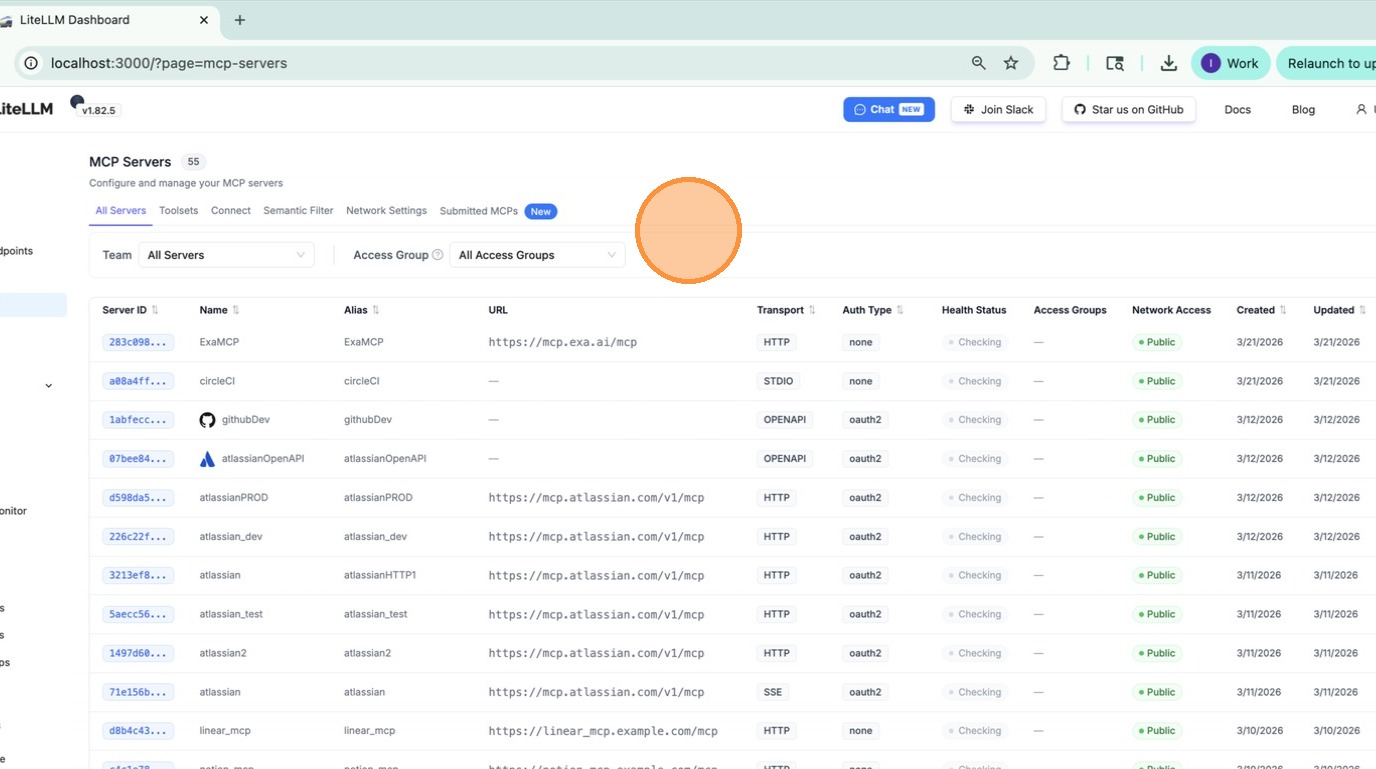
### 1. Go to the MCP page
Navigate to **MCP** in the left sidebar.
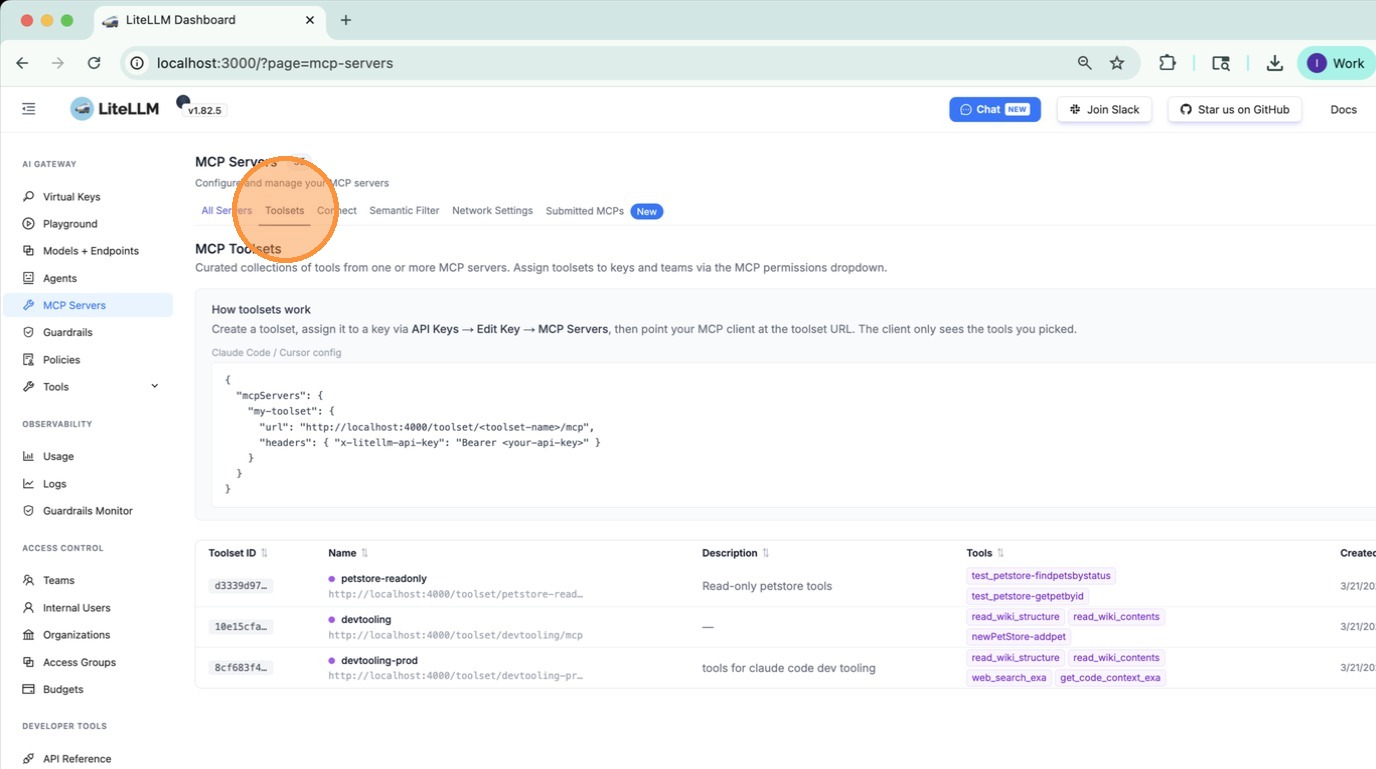
### 2. Open the Toolsets tab
Click the **Toolsets** tab on the MCP page.
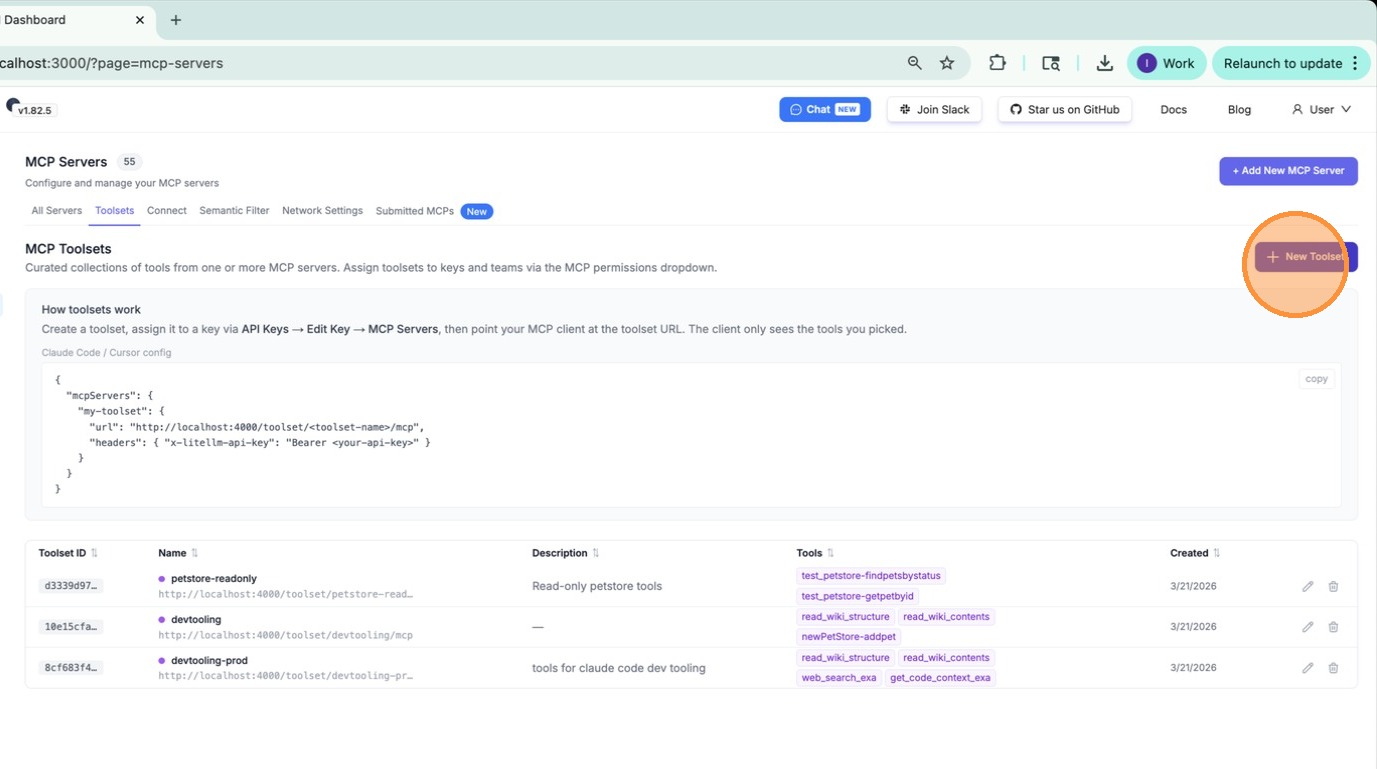
### 3. Click "New Toolset"
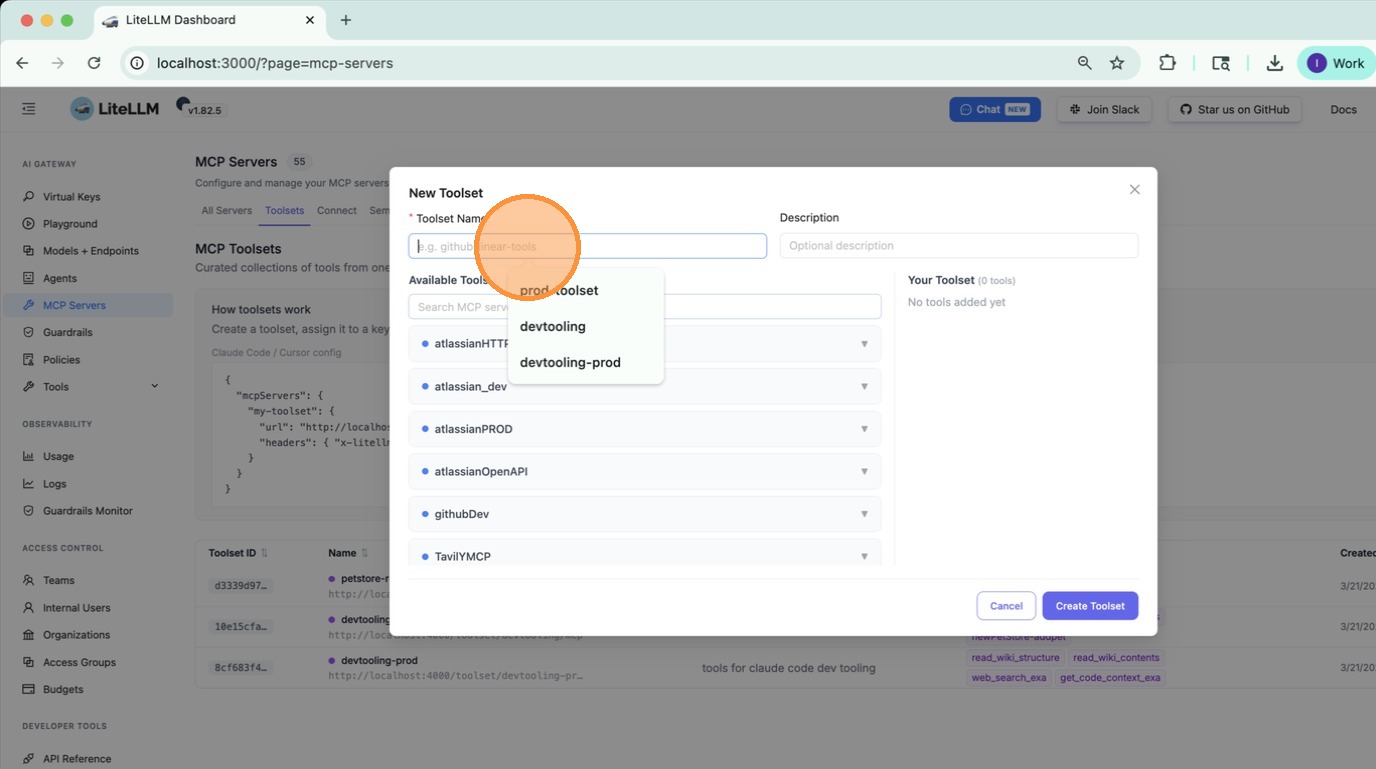
### 4. Enter a name
Type a name for the toolset. Pick something descriptive — this is what agents will reference.
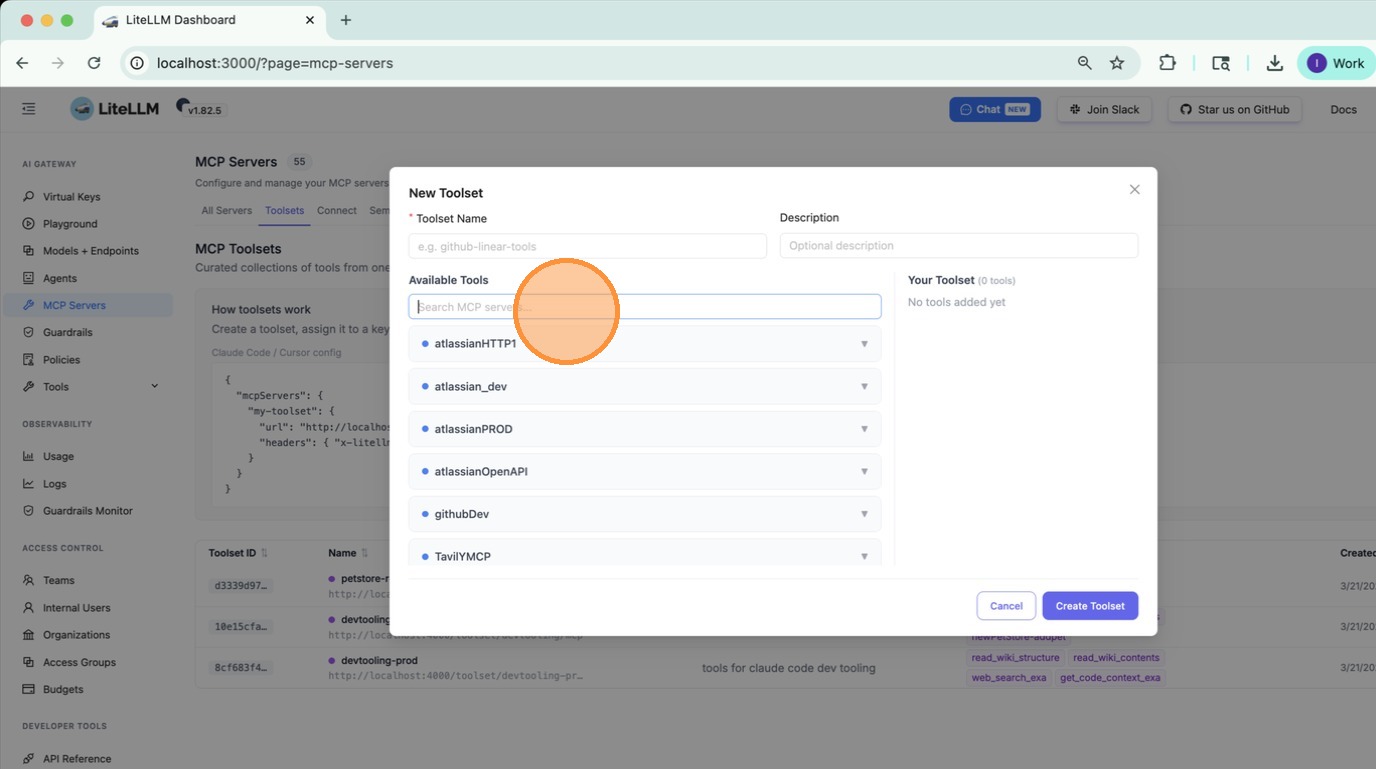
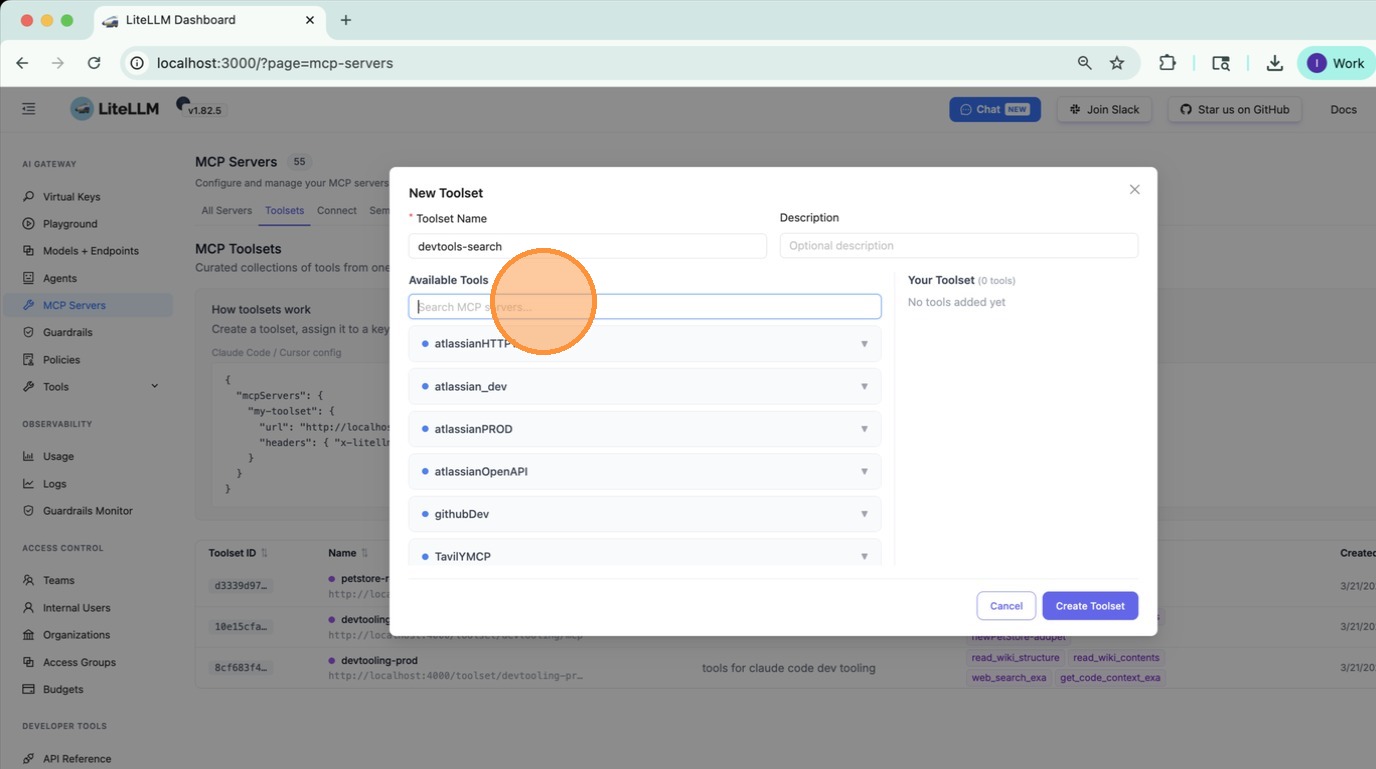
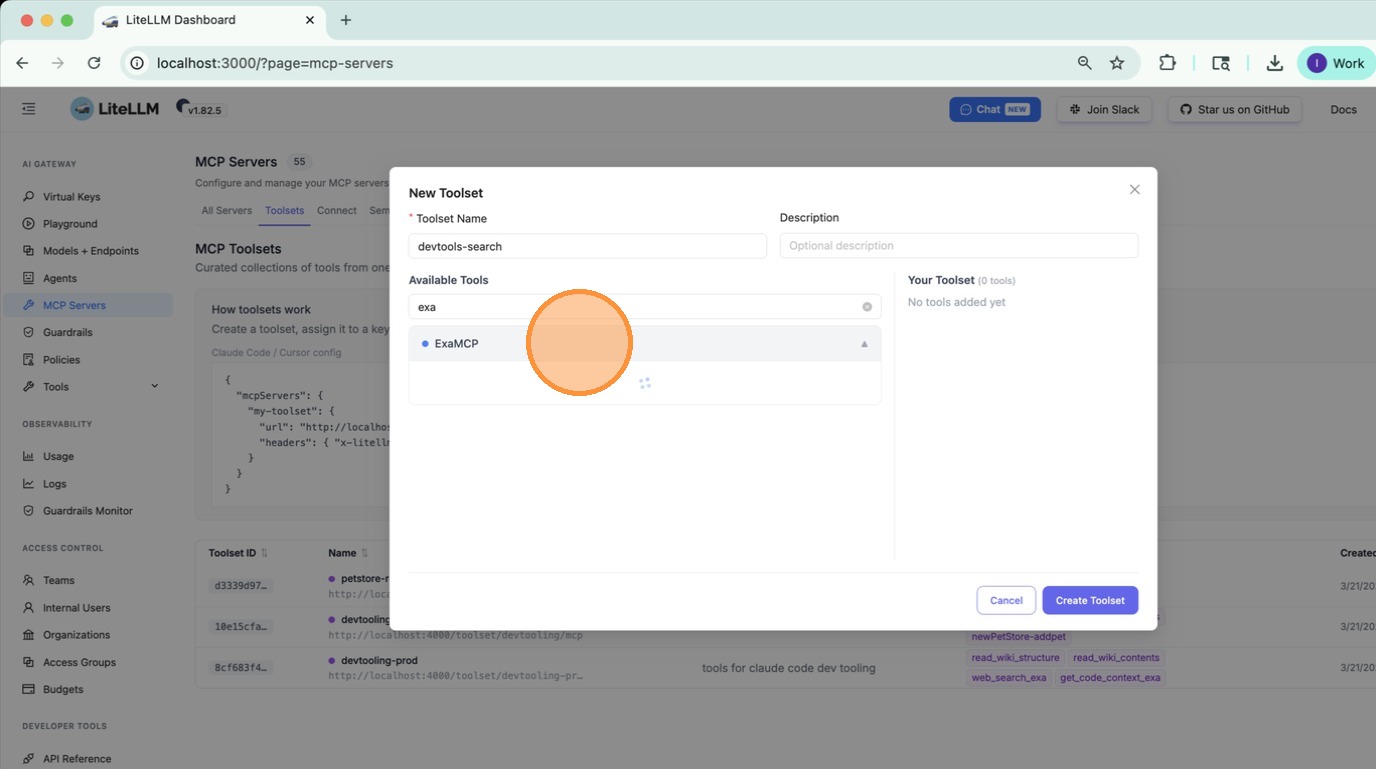
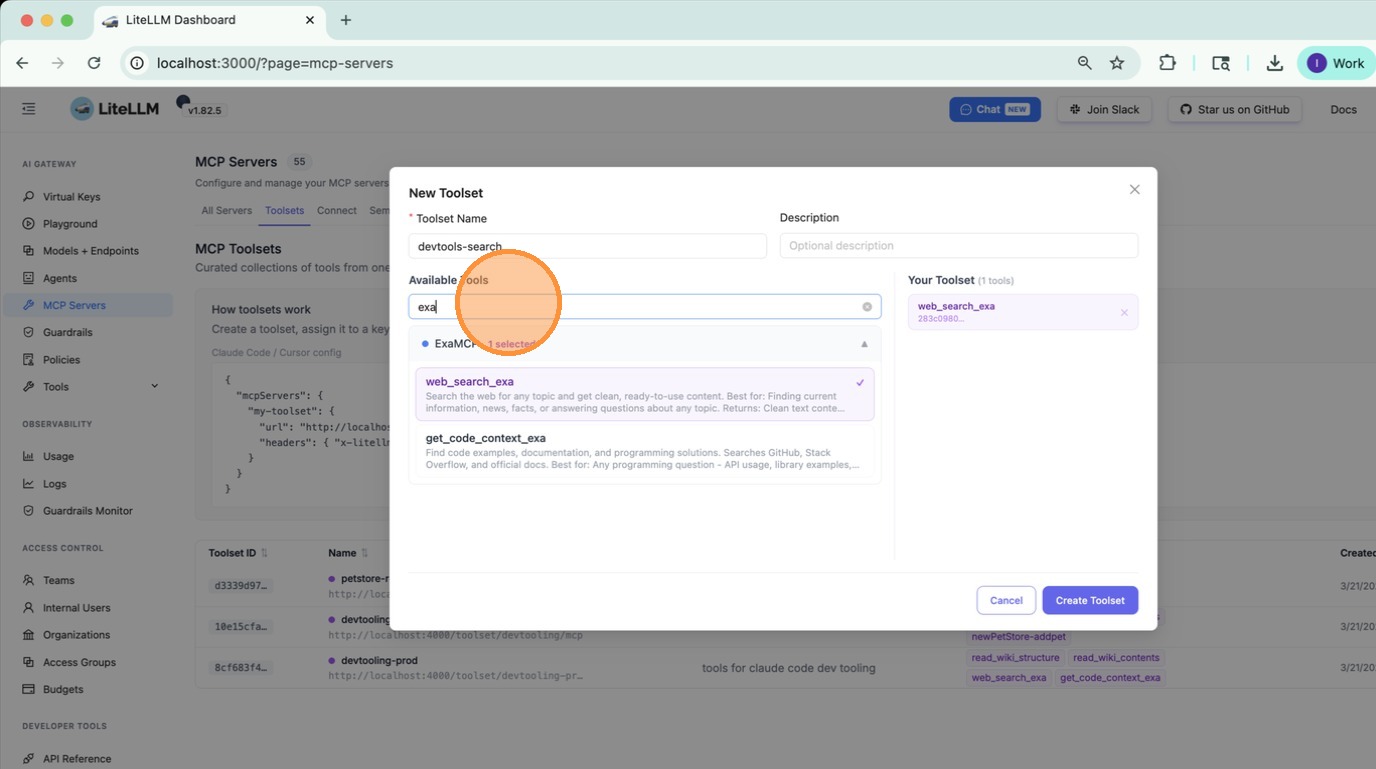
### 5. Add the first tool
Select an MCP server from the dropdown, then choose the tool you want to include from that server.
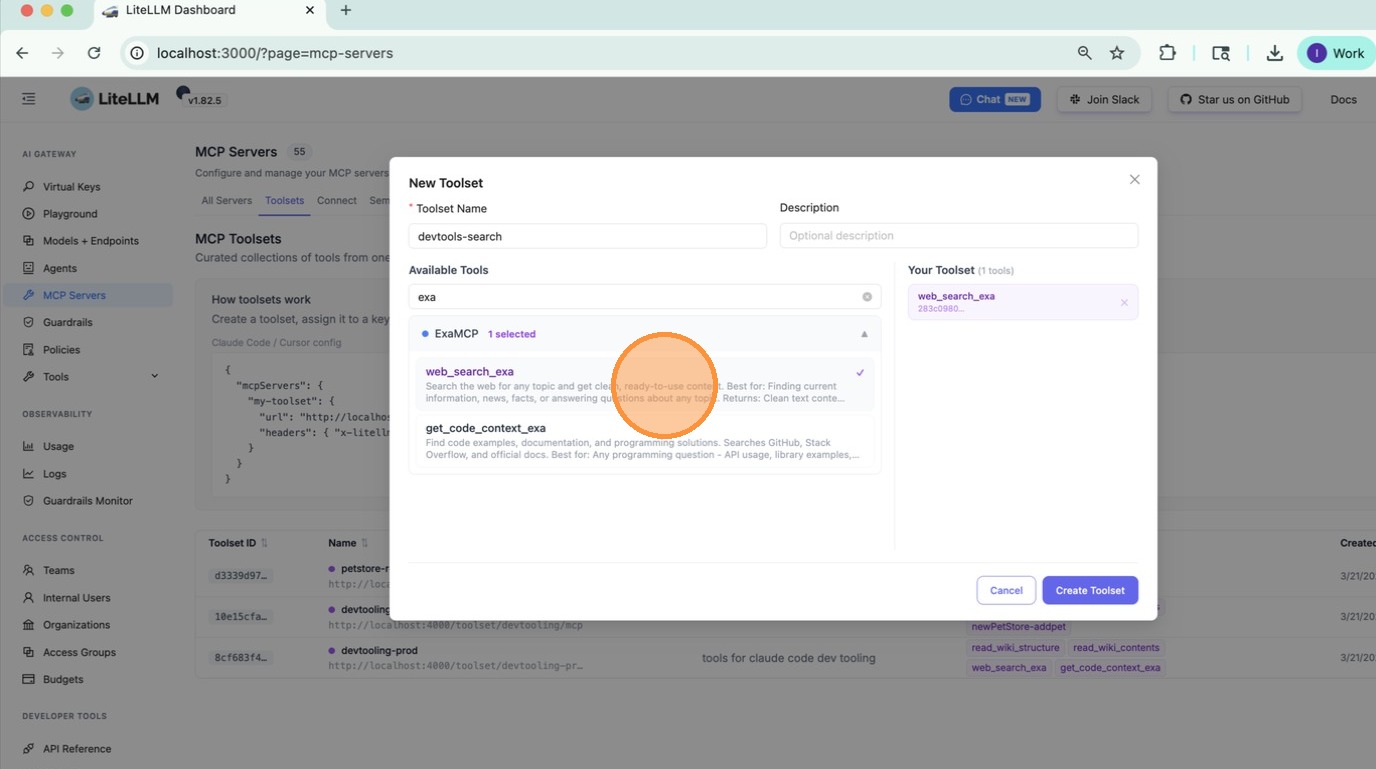
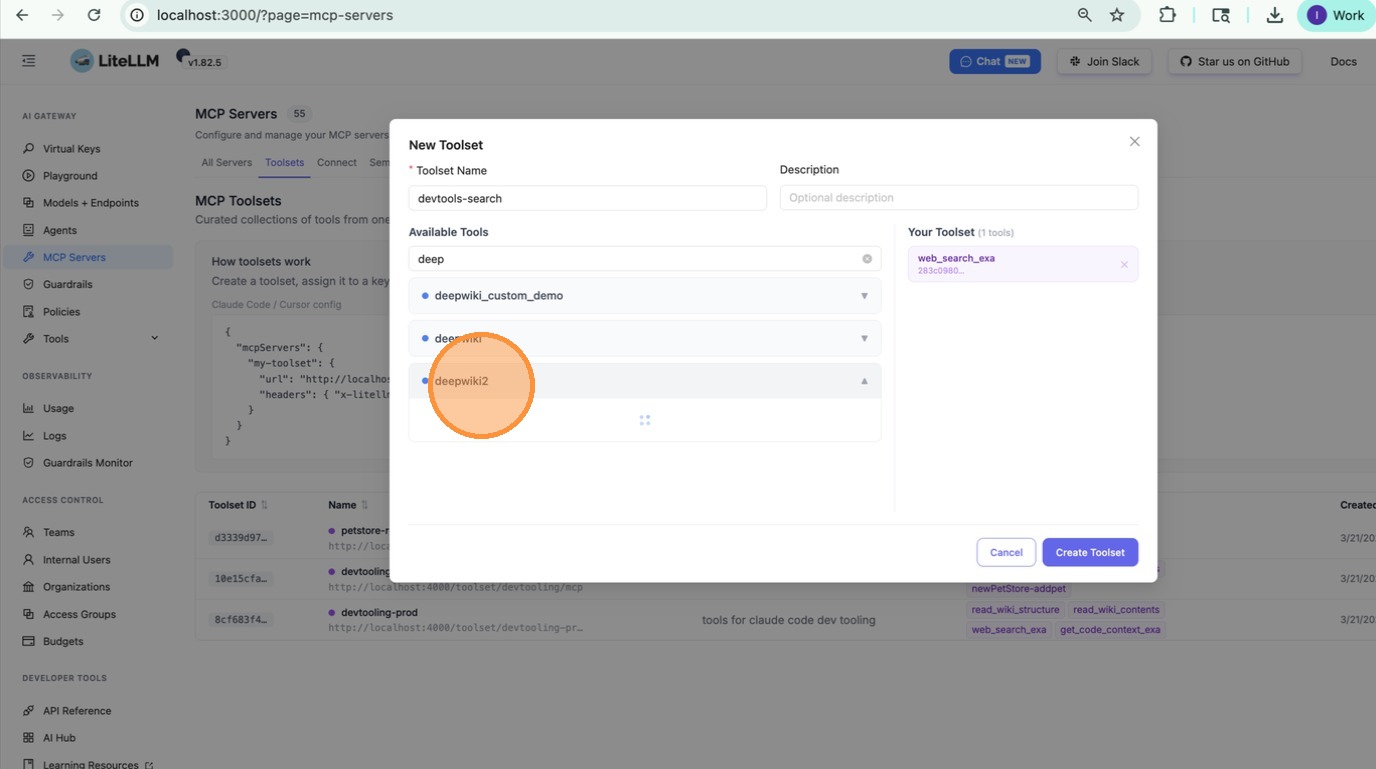
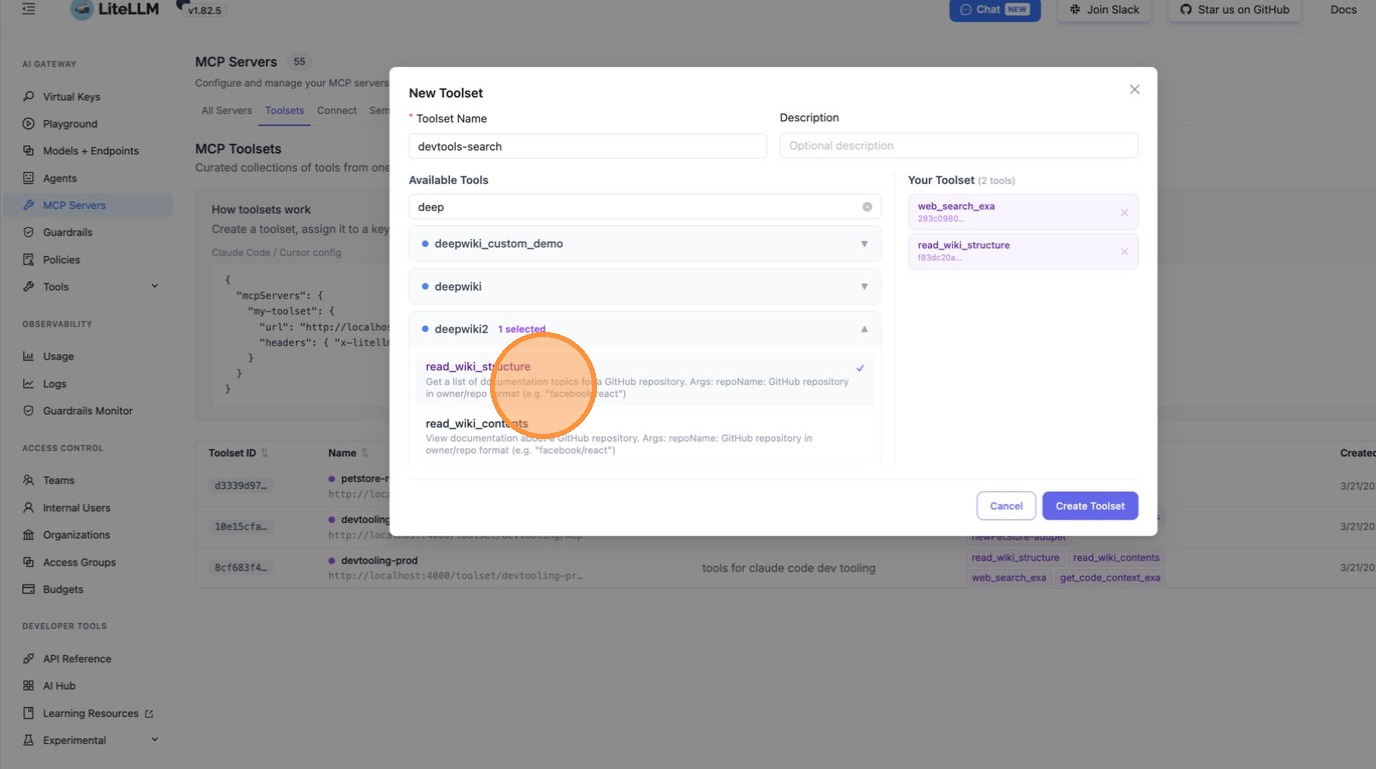
### 6. Add tools from a second server
Click **Add Tool**, pick a different MCP server, and select another tool. Repeat for as many tools as you need — they can come from any number of servers.
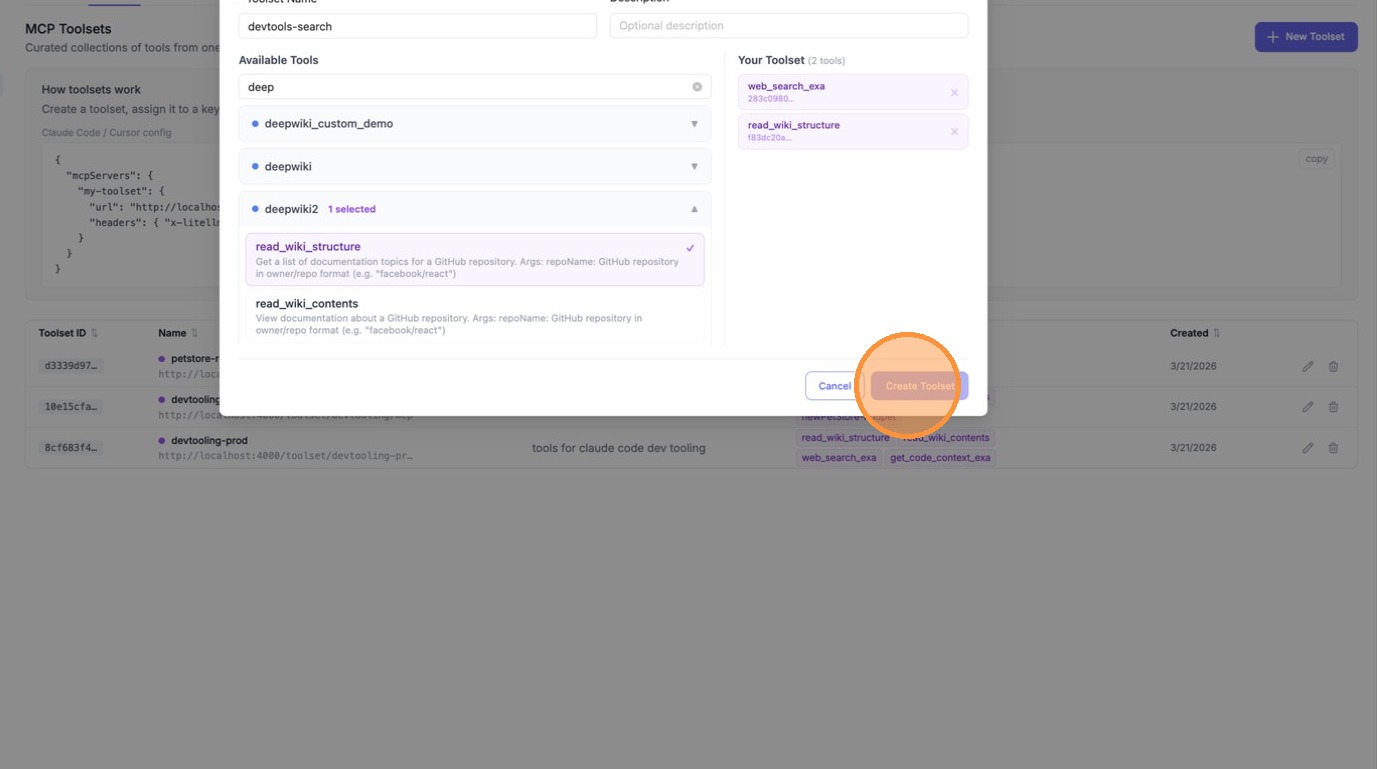
### 7. Create the toolset
Click **Create Toolset** to save.
---
## Use a toolset in the Playground
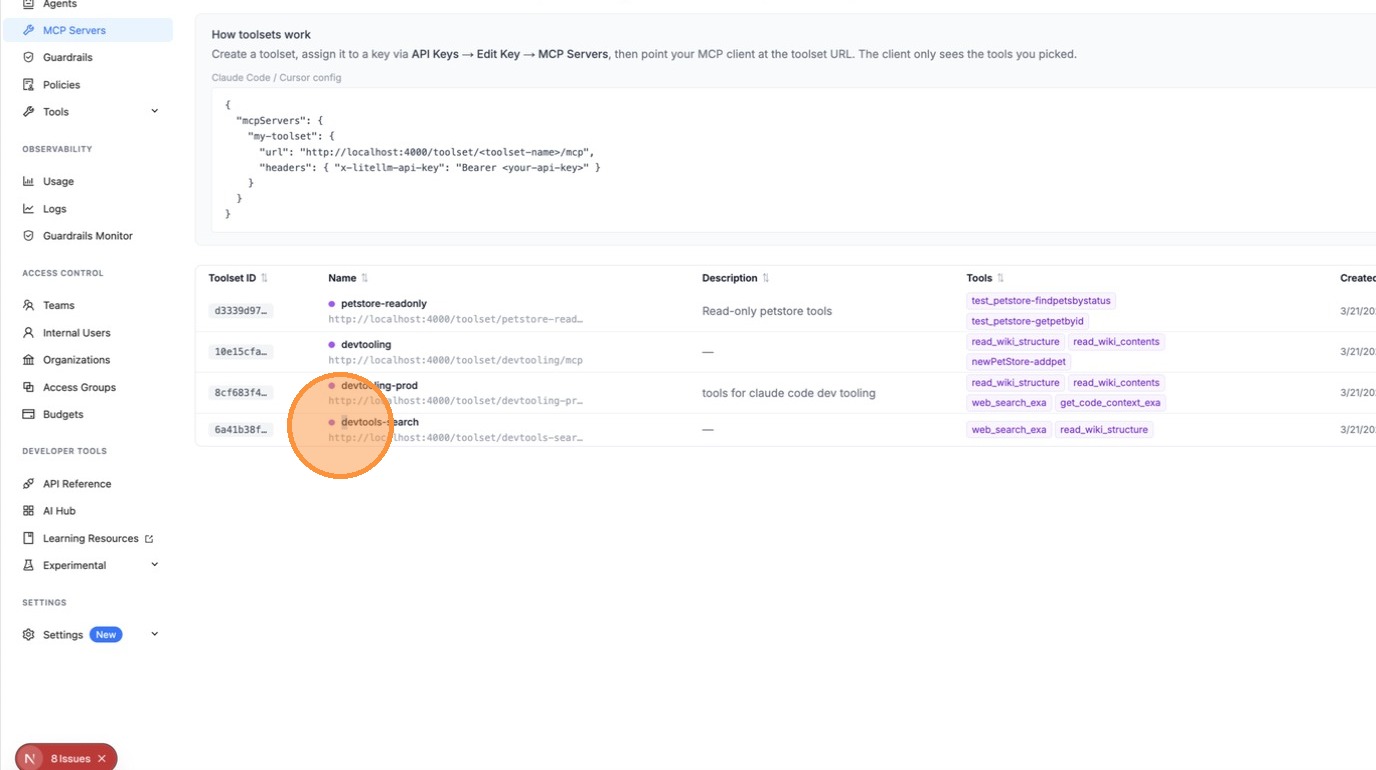
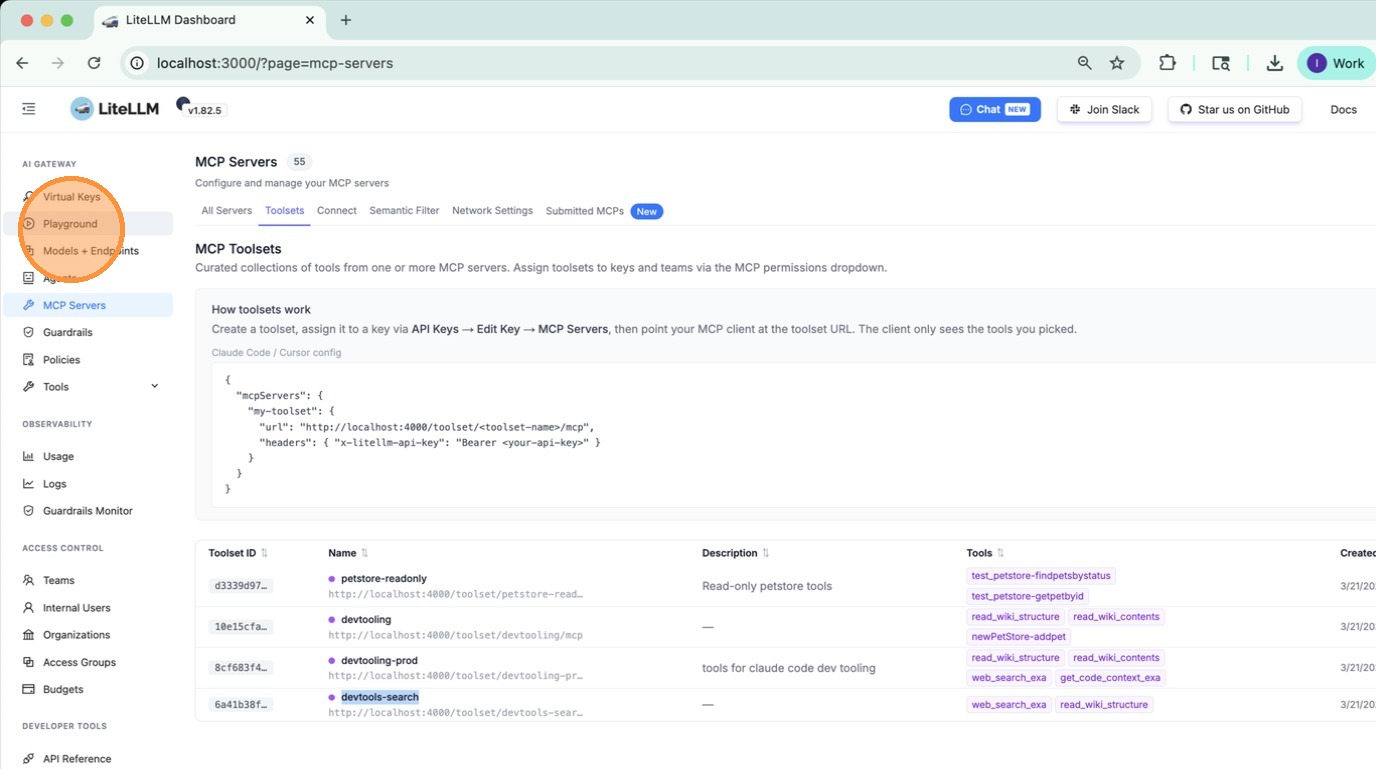
Once created, your toolset appears alongside MCP servers in the **MCP Servers** dropdown in the Playground — it's selectable the same way.
### 1. Go to the Playground
### 2. Select your toolset from MCP Servers
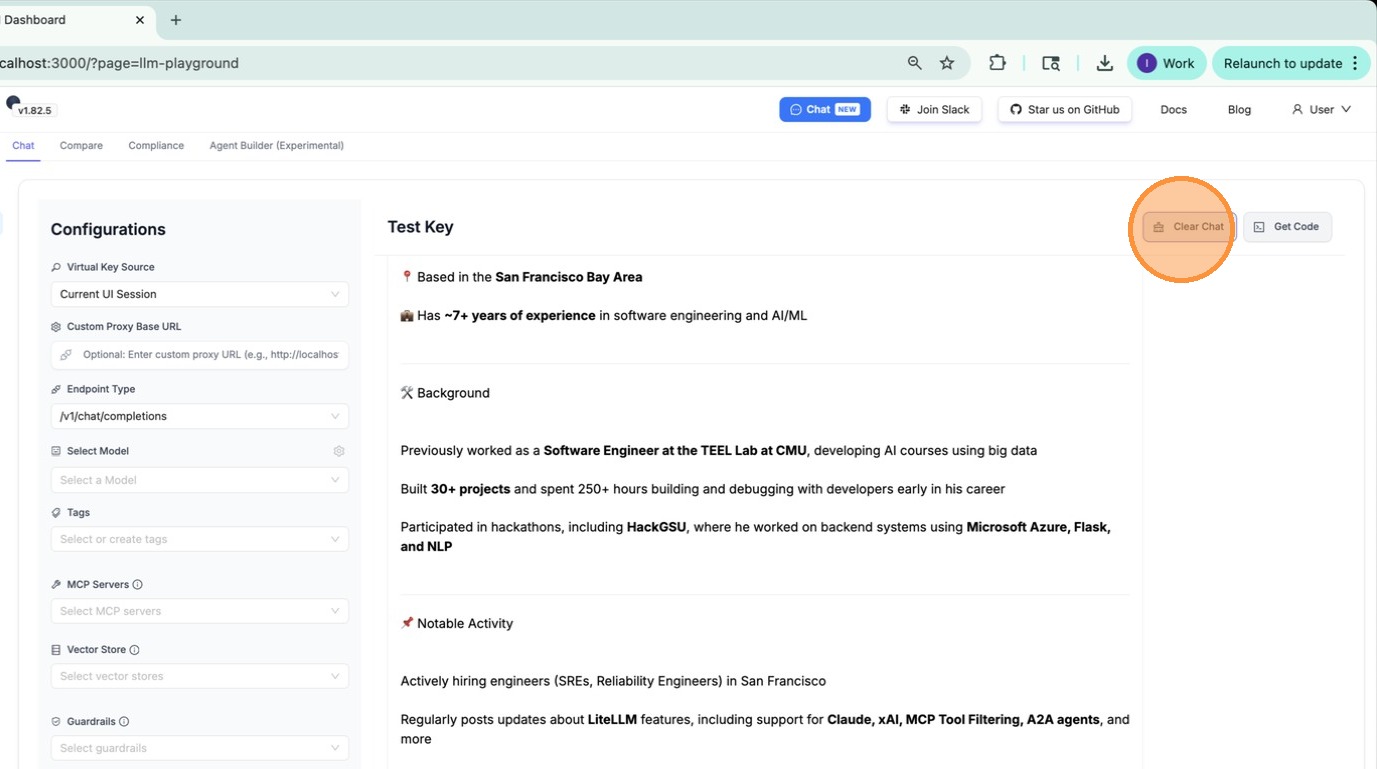
In the left panel under **MCP Servers**, open the dropdown and pick your toolset. The model will only see the tools you included in it.
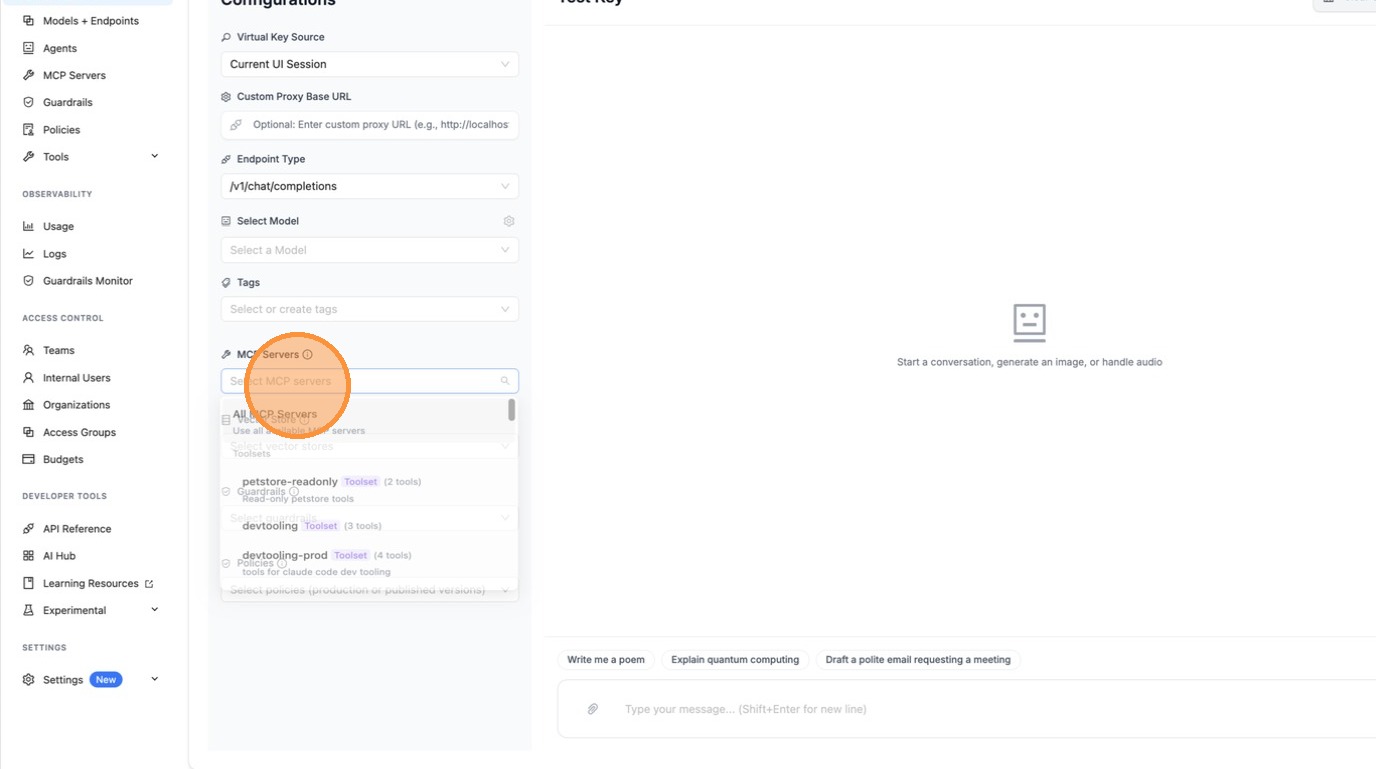
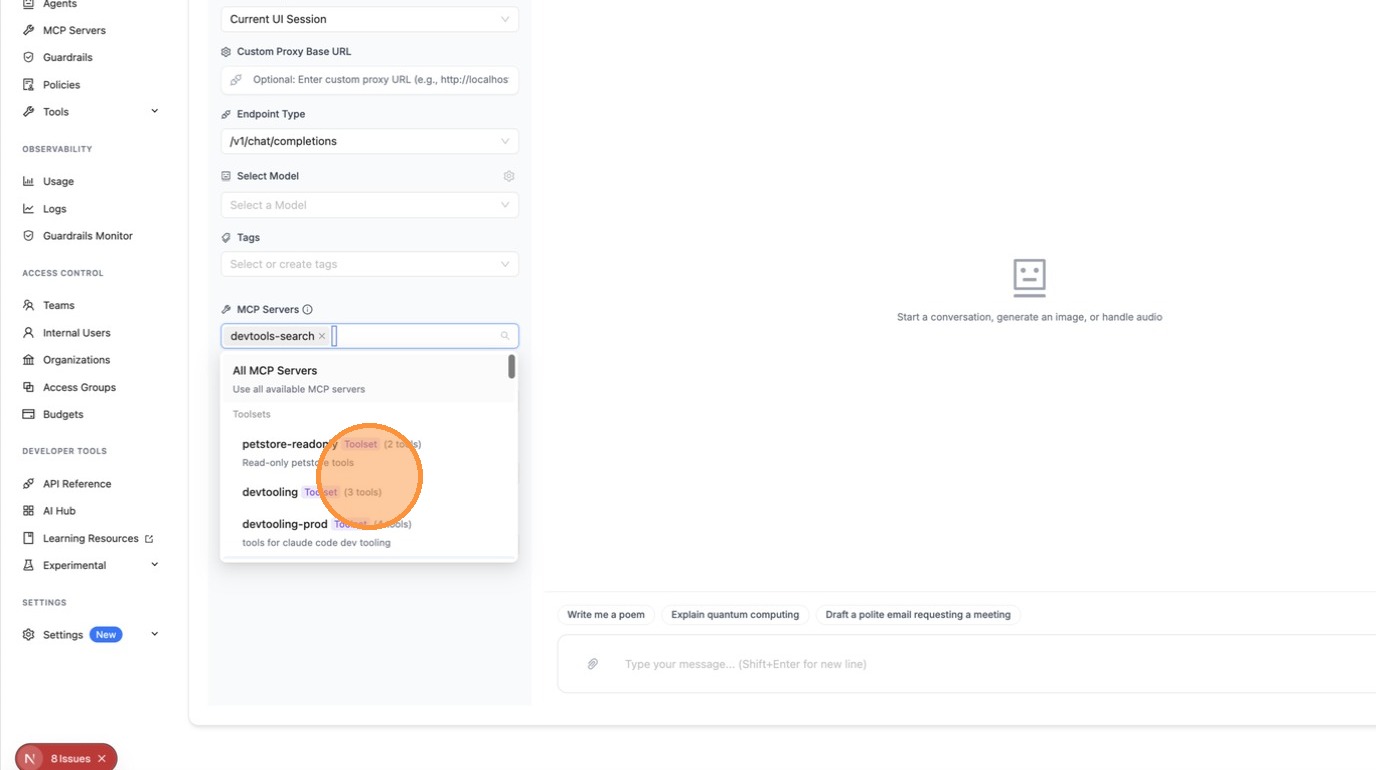
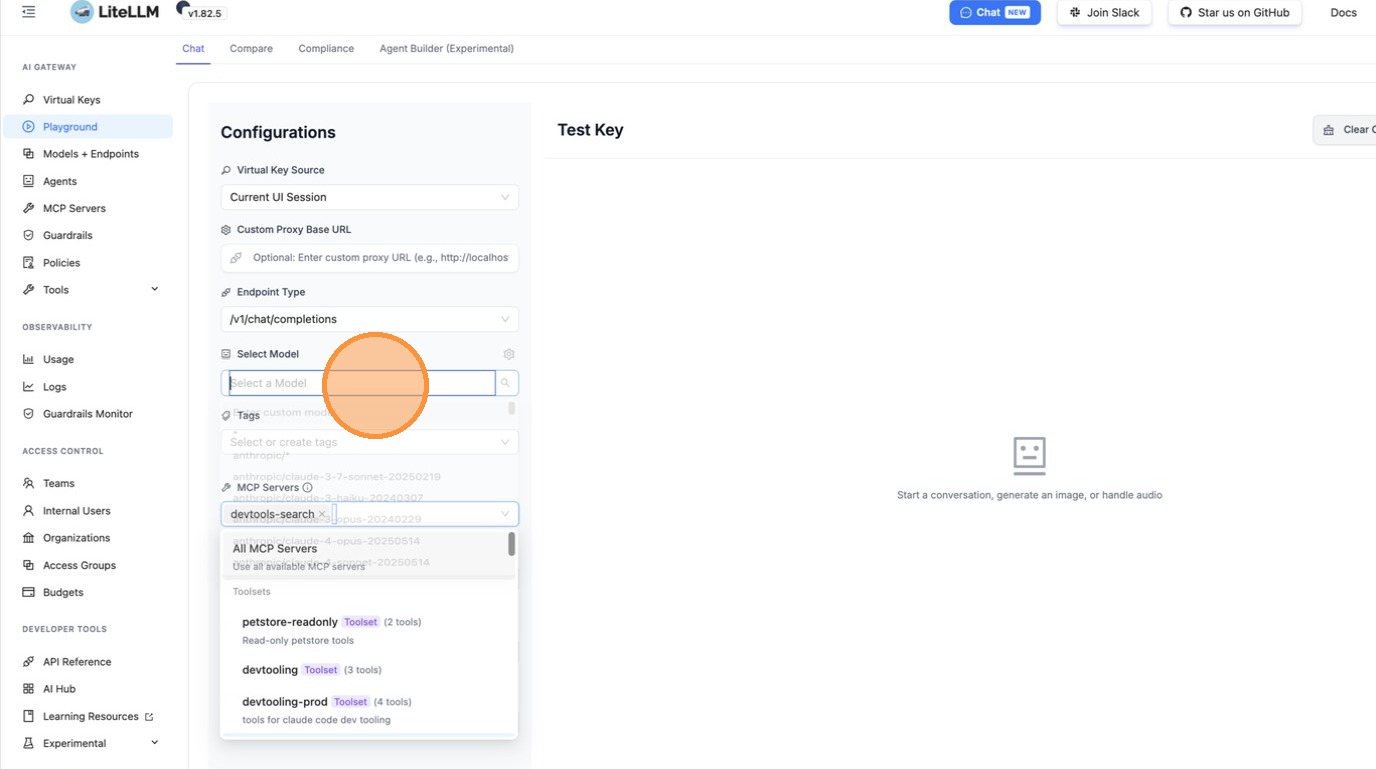
The model now has access to exactly the tools in your toolset and nothing else.
---
## Use a toolset via API
Pass the toolset's route as the `server_url` in your tools list. LiteLLM resolves it server-side — no public URL needed.
```python
import openai
client = openai.OpenAI(
api_key="your-litellm-key",
base_url="http://your-proxy/v1",
)
response = client.responses.create(
model="gpt-4o",
input="What CI/CD tools do you have?",
tools=[
{
"type": "mcp",
"server_label": "devtooling-prod",
"server_url": "litellm_proxy/mcp/devtooling-prod",
"require_approval": "never",
}
],
)
print(response.output_text)
```
```python
import openai
client = openai.OpenAI(
api_key="your-litellm-key",
base_url="http://your-proxy/v1",
)
response = client.chat.completions.create(
model="gpt-4o",
messages=[{"role": "user", "content": "What CI/CD tools do you have?"}],
tools=[
{
"type": "mcp",
"server_label": "devtooling-prod",
"server_url": "litellm_proxy/mcp/devtooling-prod",
"require_approval": "never",
}
],
)
print(response.choices[0].message.content)
```
```bash
curl http://your-proxy/v1/responses \\
-H "Authorization: Bearer your-litellm-key" \\
-H "Content-Type: application/json" \\
-d '{
"model": "gpt-4o",
"input": "What CI/CD tools do you have?",
"tools": [
{
"type": "mcp",
"server_label": "devtooling-prod",
"server_url": "litellm_proxy/mcp/devtooling-prod",
"require_approval": "never"
}
]
}'
```
---
## Manage toolsets via API
```bash
# List all toolsets
curl http://your-proxy/v1/mcp/toolset \\
-H "Authorization: Bearer your-litellm-key"
# Create a toolset
curl -X POST http://your-proxy/v1/mcp/toolset \\
-H "Authorization: Bearer your-litellm-key" \\
-H "Content-Type: application/json" \\
-d '{
"toolset_name": "devtooling-prod",
"description": "CircleCI + DeepWiki tools for the dev team",
"tools": [
{"server_id": "", "tool_name": "get_build_failure_logs"},
{"server_id": "", "tool_name": "run_pipeline"},
{"server_id": "", "tool_name": "read_wiki_structure"}
]
}'
# Delete a toolset
curl -X DELETE http://your-proxy/v1/mcp/toolset/ \\
-H "Authorization: Bearer your-litellm-key"
```
---
Source: [Claudary](https://claudary.paisolsolutions.com/skills/mcp-toolsets) · https://claudary.paisolsolutions.com